
On an Android smartphone or an iPhone, every contact displayed in the address book comes from a specific location: the device’s internal storage, the SIM card, or a cloud account (Google, iCloud).
A contact visible on screen isn’t necessarily saved where you think it is, because the Contacts app combines these three sources into a single list. Before switching phones, handing over a device, or removing a SIM card, identifying the actual source of each number can prevent permanent data loss.
Displayed contacts and saved contacts: an important distinction
By default, a smartphone’s Contacts app doesn’t visually distinguish between a number synced with a Google account and one stored only on the SIM. Both appear in the same list, with the same display style.
A contact synced with a Google or iCloud account exists online, independently of the device. It will survive a reset, theft, or malfunction. A contact saved locally (in the internal storage or on the SIM) exists only on the physical storage medium. If that medium is lost without first exporting the contact, the number is lost with it.
To check where your contacts are stored, the most reliable method is to open an individual contact card and look for the associated account (Gmail, iCloud, local storage, SIM). The full list alone isn’t enough.
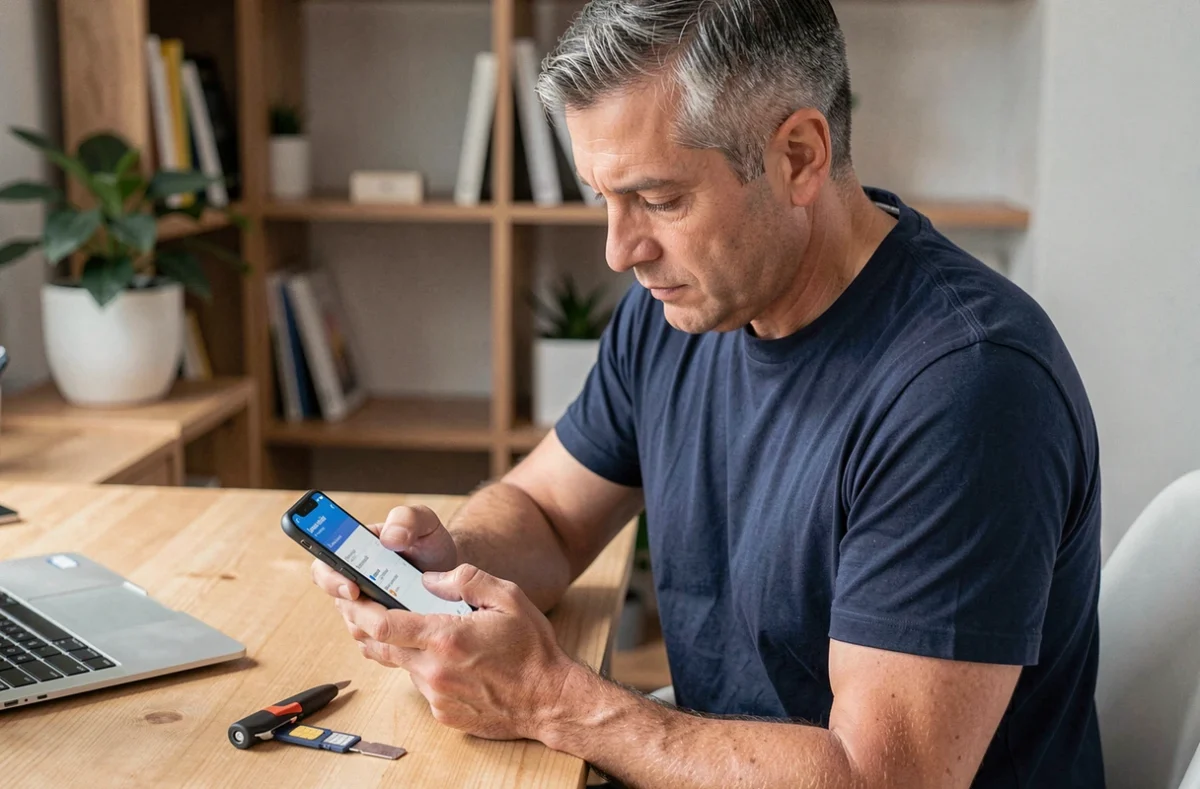
Check where a contact is stored on Android
On Android, menu labels vary by manufacturer. Samsung, Xiaomi, Pixel, and OnePlus don’t use exactly the same terms, but the principle is the same.
Check a contact card
Open the Contacts app, select a name, then look for a label such as “Google”, “Device”, or “SIM” in the card header or details. On Pixel phones, this information appears directly below the name. On Samsung phones, it may be under “Details” or “Linked account”.
Filter by source in settings
The Contacts app usually offers a display filter, accessible from the menu (three dots or three lines at the top of the screen). This filter lets you show contacts from a specific source only:
- Google account contacts synced online and accessible from any device signed in to the same account
- Device contacts (local storage), linked exclusively to the phone’s internal storage
- SIM contacts, which are limited in capacity and fields (often just a name and one number, with no email address or photo)
Uncheck every source except “SIM” to see exactly which numbers are stored on the card. This takes less than a minute and often reveals surprises: contacts you thought were backed up to the cloud may actually exist only on the SIM card.
Check where a contact is stored on iPhone
Contact management works differently on iOS. Apple doesn’t use the SIM card as a regular storage location for contacts. Most numbers are linked to an iCloud account, a Google account added manually, or local storage under “On My iPhone”.
To identify the source, open Settings, then Contacts, then Accounts. Each account listed (iCloud, Gmail, Exchange) may sync contacts. Temporarily turning off sync for an account makes its associated contacts disappear from the list, helping you identify where they came from.
A contact listed under “On My iPhone” doesn’t exist anywhere else. It can’t be recovered after a reset unless you’ve made an iTunes or Finder backup.
Complete audit before handing over or resetting a phone
Checking contacts one by one works for a few priority numbers, but it isn’t enough when your address book contains several hundred entries. A more systematic approach is needed before parting with a device.
Compare the local list with the cloud list
The most reliable check before switching phones is to compare the number of contacts on the device with the number in your online account. On Android, go to contacts.google.com in a browser and count the entries. On iPhone, check icloud.com/contacts. If the online total is lower than the number on your phone, some local or SIM contacts aren’t backed up.
Export missing contacts
Contacts identified as local or SIM contacts should be transferred to your cloud account before resetting the device. On Android, the usual path is Contacts, then Settings (or Manage contacts), then Export or Import. The exact label depends on the manufacturer: “Import/Export”, “Manage contacts”, or simply “Import”.
- Export SIM contacts to your Google account by selecting the SIM as the source and your Google account as the destination
- Export local contacts to a .vcf file, then import it into your cloud account
- Check again on contacts.google.com or icloud.com to make sure the contacts appear after the transfer
This double check (export, then verify online) is the only way to ensure that no numbers are lost during the reset.
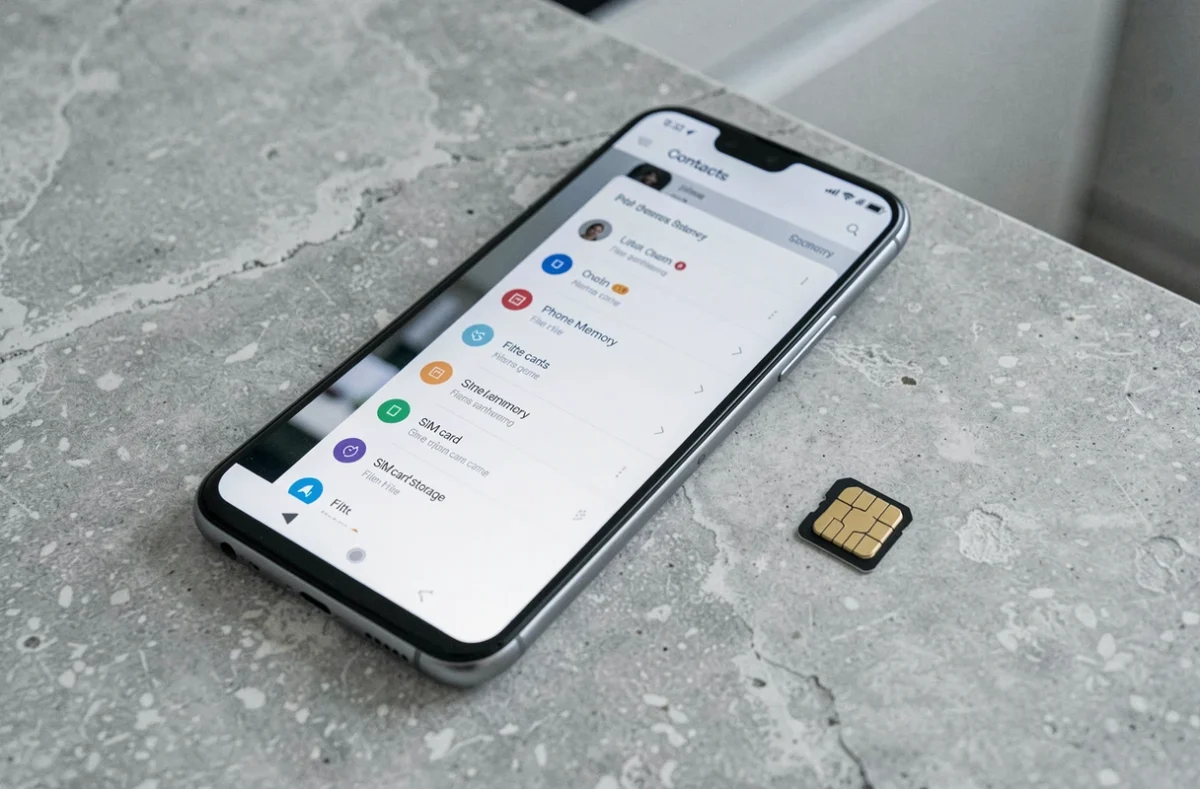
SIM storage limits and real-world risks
The SIM card remains a basic storage medium. It can hold a limited number of contacts (usually a few hundred at most) and stores only basic fields: a truncated name and a phone number. No email address, photo, or notes.
A detailed contact saved to the SIM loses all its metadata. Transferring an entire address book from a Google account to a SIM creates a stripped-down version of each contact card. Transferring it back from the SIM to the cloud won’t restore the lost information.
As eSIMs become more widespread, storing contacts on a physical SIM card is becoming less relevant. eSIMs don’t provide storage space for contacts. The cloud is therefore the only viable safety net for keeping a complete, up-to-date address book.
The habit to adopt is simple: use a web browser to check that your backup account contains your entire address book. If a contact is missing online, it will be missing on your next phone.